
How to Enroll in a Course
Step-by-step guide to enrolling in free and paid courses on the HUC Learning Portal, including prerequisites, payment, and accessing course content.
How to Enroll in a Course
This guide walks you through enrolling in a course on the HUC Learning Portal — from browsing the catalog to accessing your first lesson.
Before You Begin
Before enrolling in any course, make sure you've completed these steps:
| Step | Why it's needed | Where to do it |
|---|---|---|
| 1. Create HUC account | Required to access any HUC service | auth.hostupcloud.com/signup |
| 2. Complete KYC | Required for paid course purchases | auth.hostupcloud.com/kyc |
| 3. Add billing contact | Required for invoicing and payment | auth.hostupcloud.com/contacts |
KYC and contact details are mandatory for paid courses. Without them, your invoice cannot be generated properly and payment gateways may not work. Free courses can be enrolled without these steps, but we recommend completing them early.
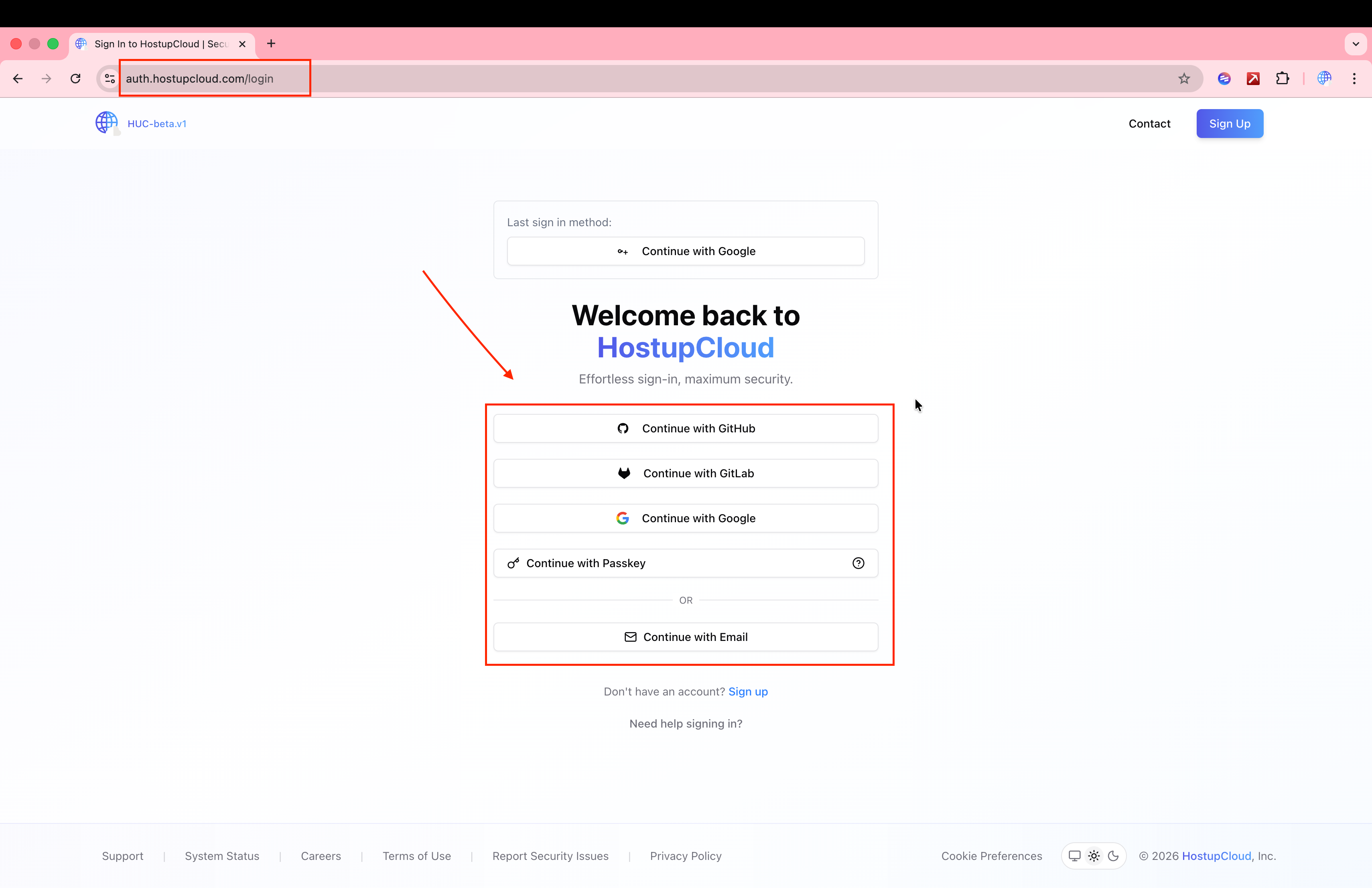
Sign in at auth.hostupcloud.com using GitHub, GitLab, Google, Passkey, or Email:
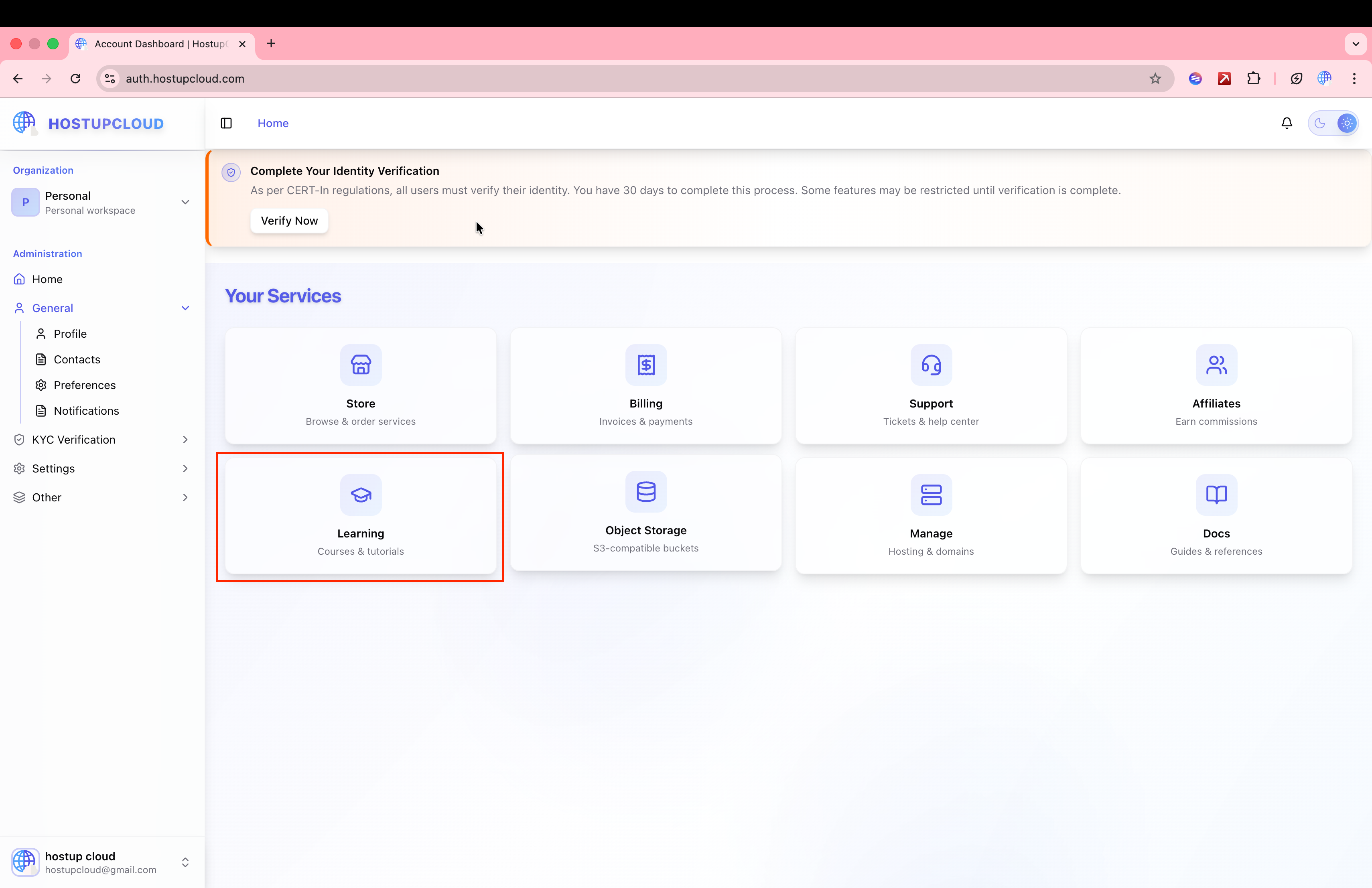
After signing in, your HUC Account Dashboard shows all available services. You'll also see a KYC verification banner if you haven't completed identity verification yet:
Adding a Billing Contact
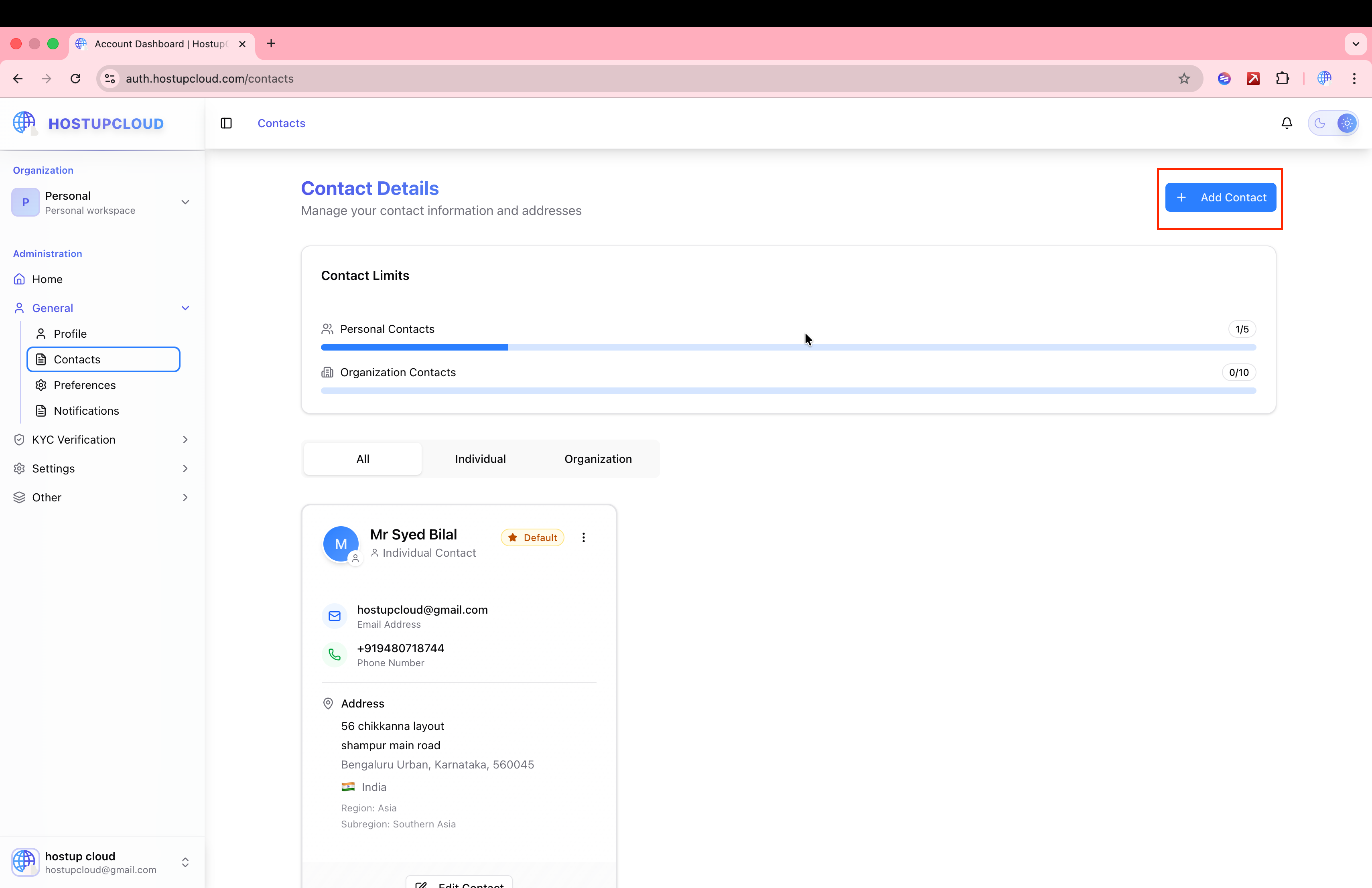
Your billing contact is used for invoice generation and GST calculation. To add one:
- Go to auth.hostupcloud.com and navigate to Contacts from the sidebar.
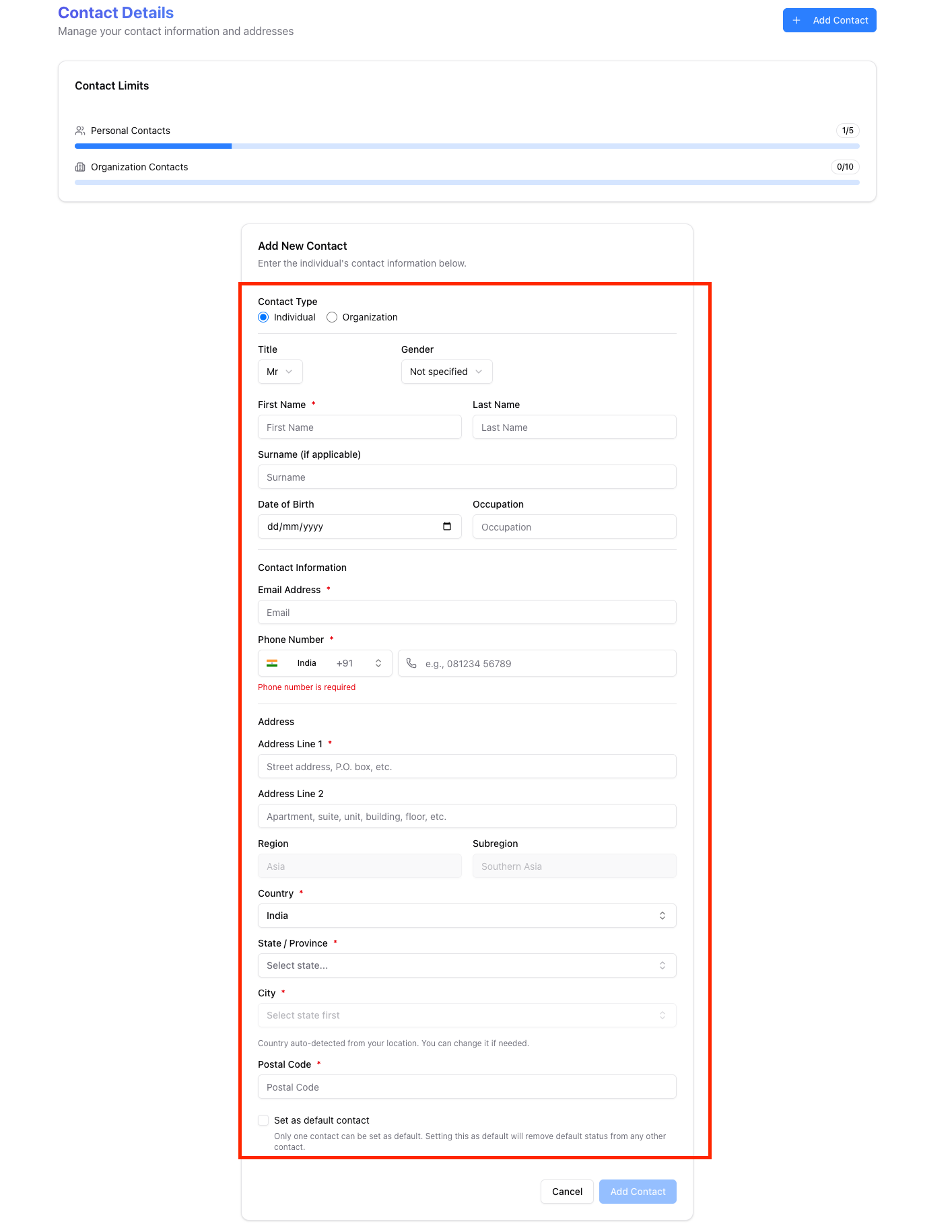
- Click Add Contact and fill in:
- Name — your full name or organization name
- Email — billing email address
- Phone number
- Address — street, city, state, country, postal code
- Tax ID / GSTIN — if applicable (for Indian businesses)
- Save the contact. It will be automatically synced to the billing system.
Your first contact is set as the default billing contact. When an invoice is created for a course purchase, this contact's details are used for the invoice address and GST calculation. Indian users with a valid state get automatic CGST/SGST or IGST applied at 18%.
Step 1: Browse Courses
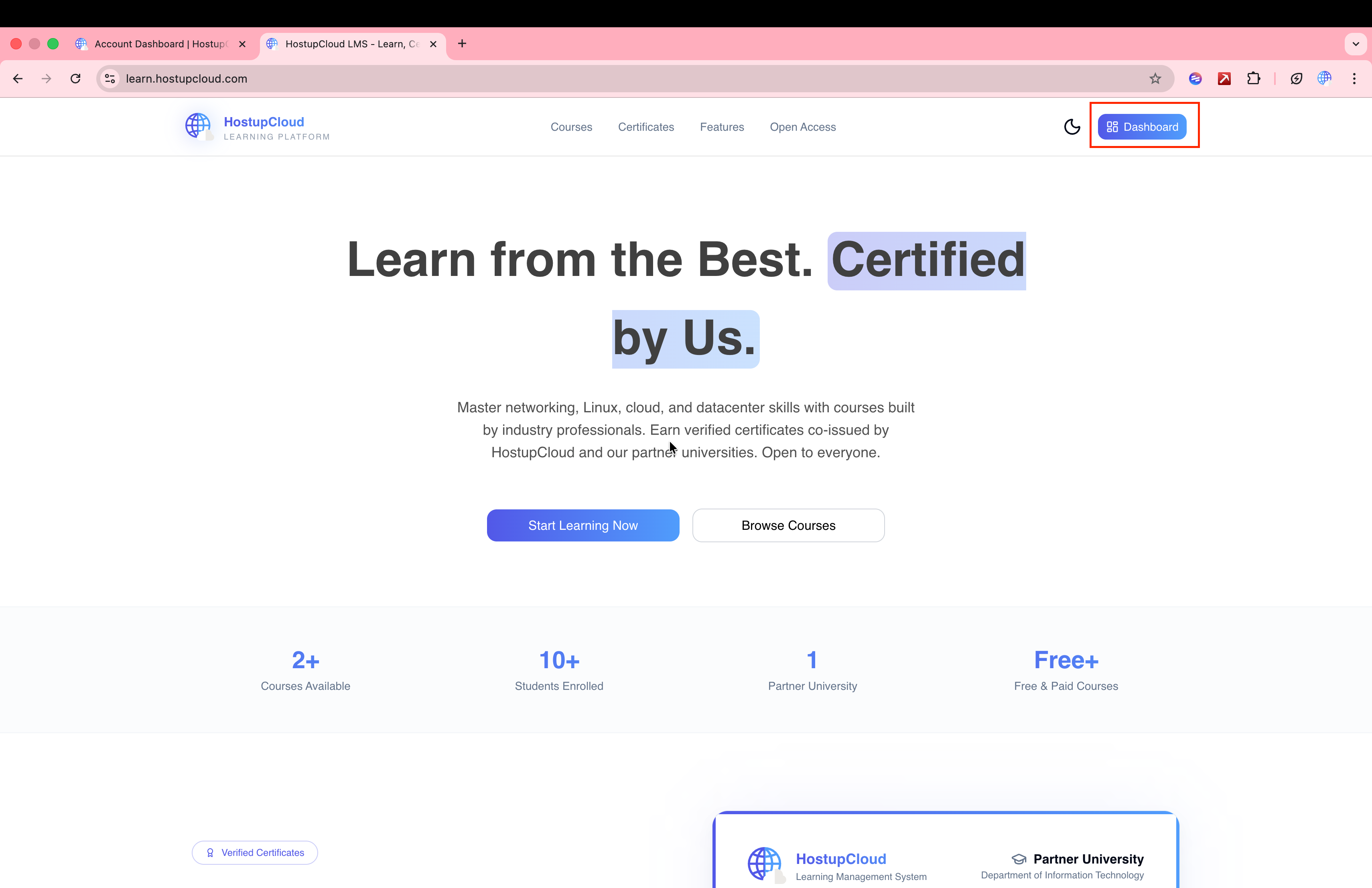
- Visit learn.hostupcloud.com. You'll be signed in automatically via SSO.
- Click Dashboard from the top navigation or go to My Courses.
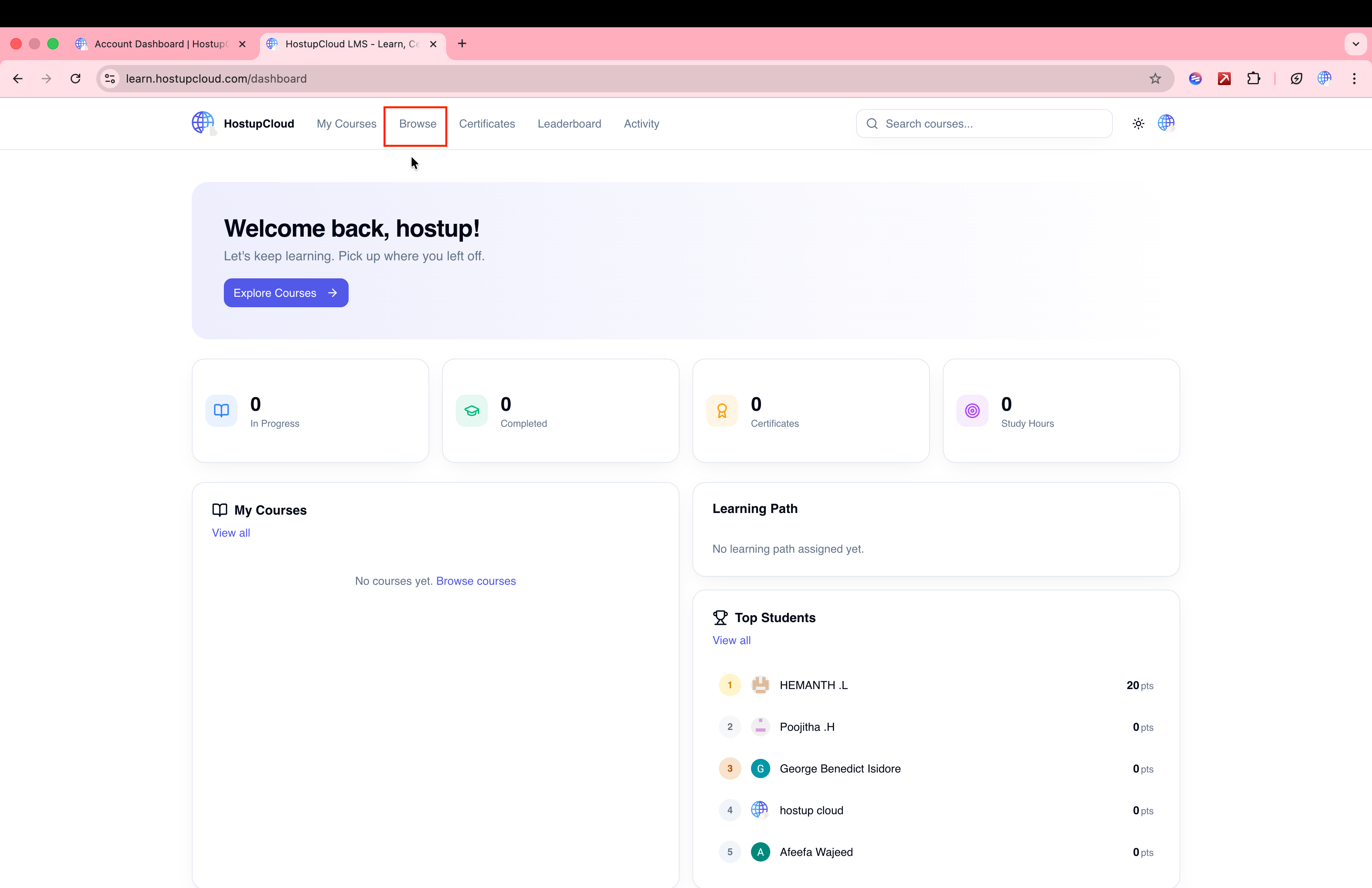
- Go to Browse from the navigation menu.
Once on your dashboard, click Browse in the top navigation to explore the course catalog:
- Explore the course catalog:
- Search by course name or keyword
- Filter by category (Cloud Computing, Linux, Networking, etc.)
- View ratings, student count, lesson count, and duration for each course
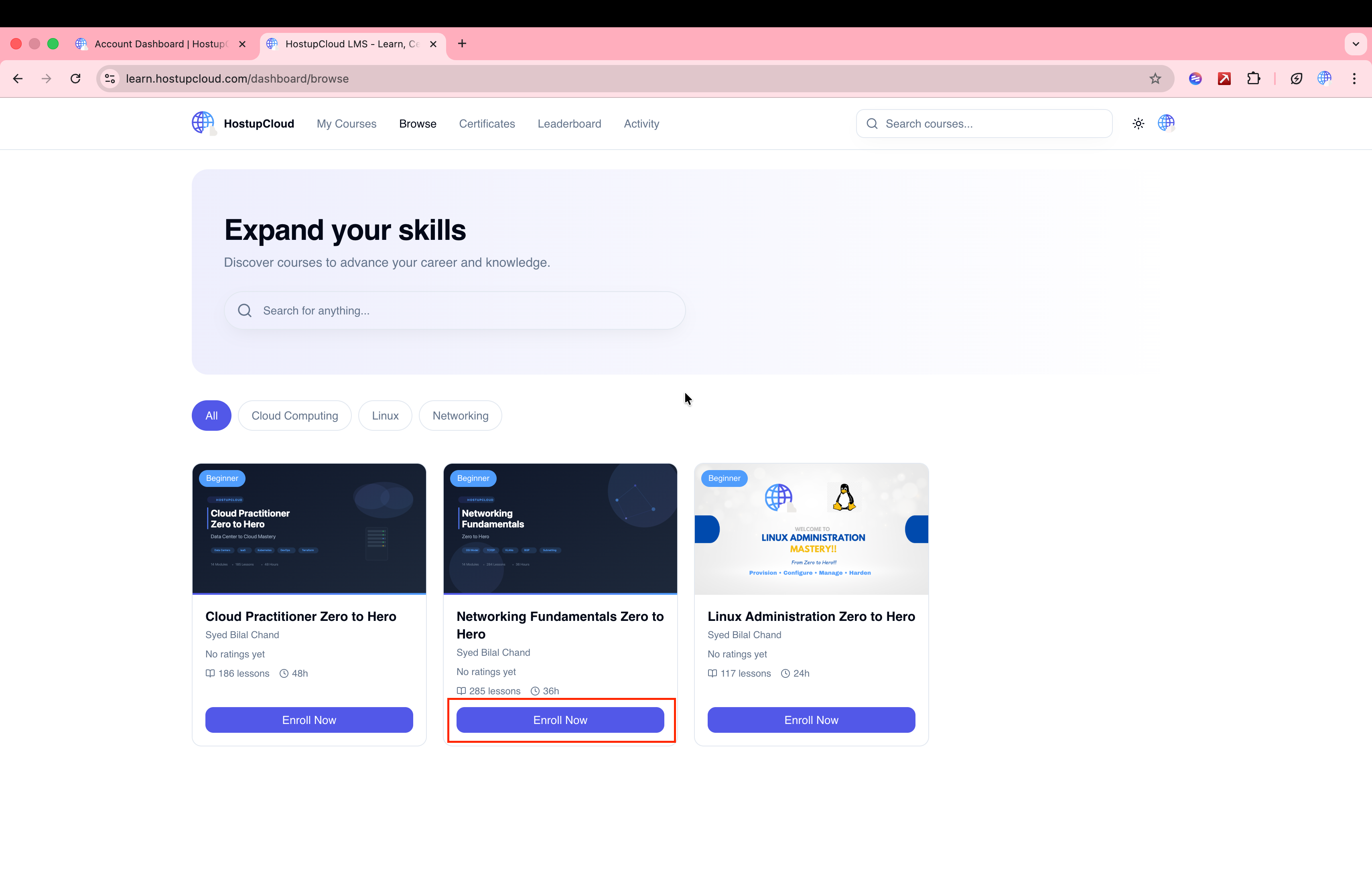
Each course card shows:
- Course thumbnail and title
- Instructor name
- Average rating from student reviews
- Number of enrolled students
- Total lessons and estimated duration
- Price (or "Free")
Step 2: Enroll in a Course
Free Courses
For free courses, enrollment is instant:
- Click Enroll Now on the course card.
- You're immediately enrolled and redirected to the course content.
- Start learning right away.
Paid Courses
For paid courses, clicking Enroll Now opens a purchase summary on the Learning Portal:
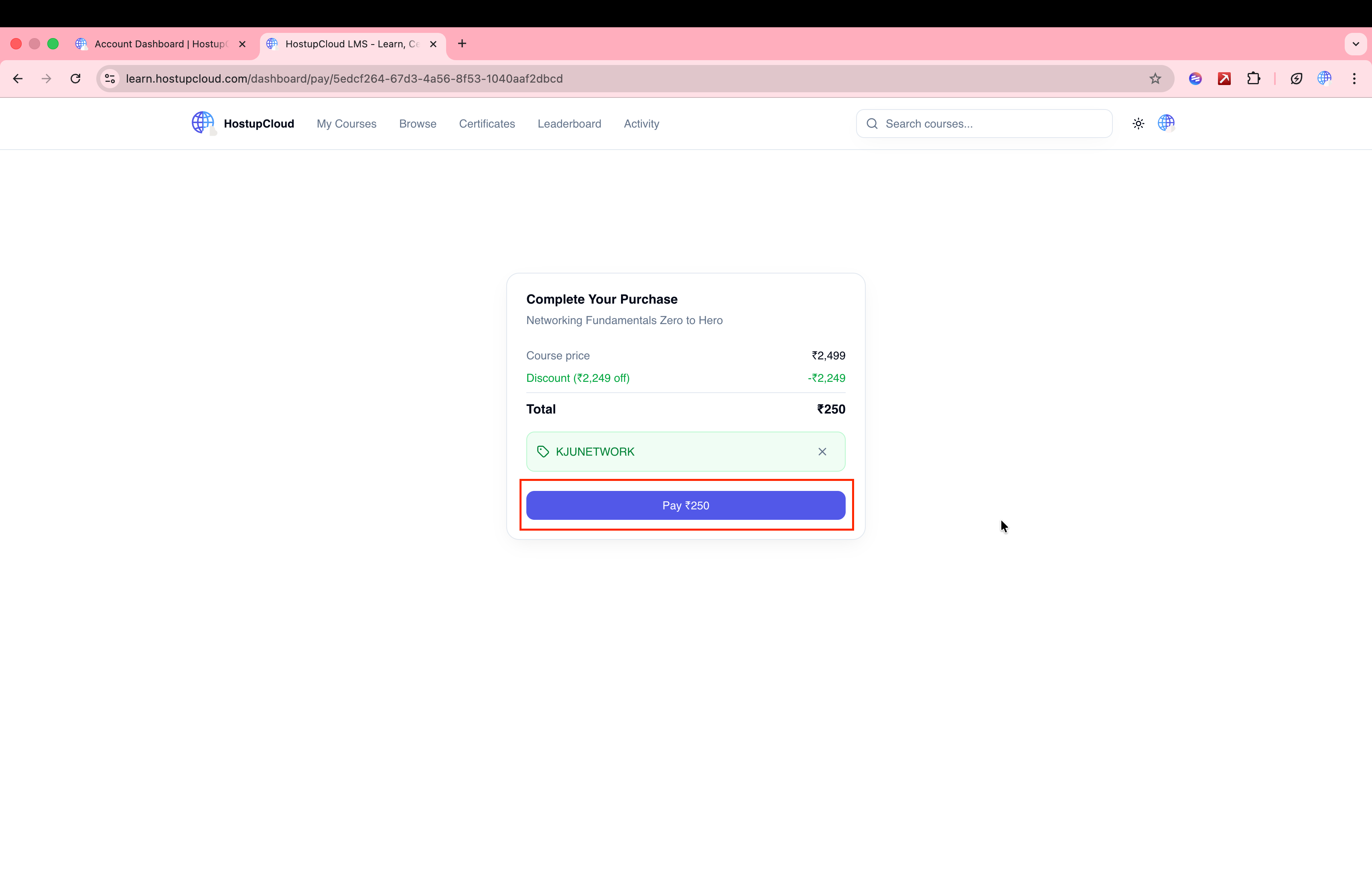
This screen shows:
- Course price
- Discount (if a coupon is applied)
- Total amount due
- Coupon code field — enter your code here before clicking Pay
Click Pay ₹XXX to proceed. You'll be redirected to the HUC Billing portal (billing.hostupcloud.com) via SSO — no need to log in again.
If you're not already logged into the billing portal, the system handles SSO authentication automatically. You'll be seamlessly signed in and taken directly to your invoice.
Step 3: Pay for the Course (Paid Courses)
Once redirected to billing, you'll see a full invoice for the course:
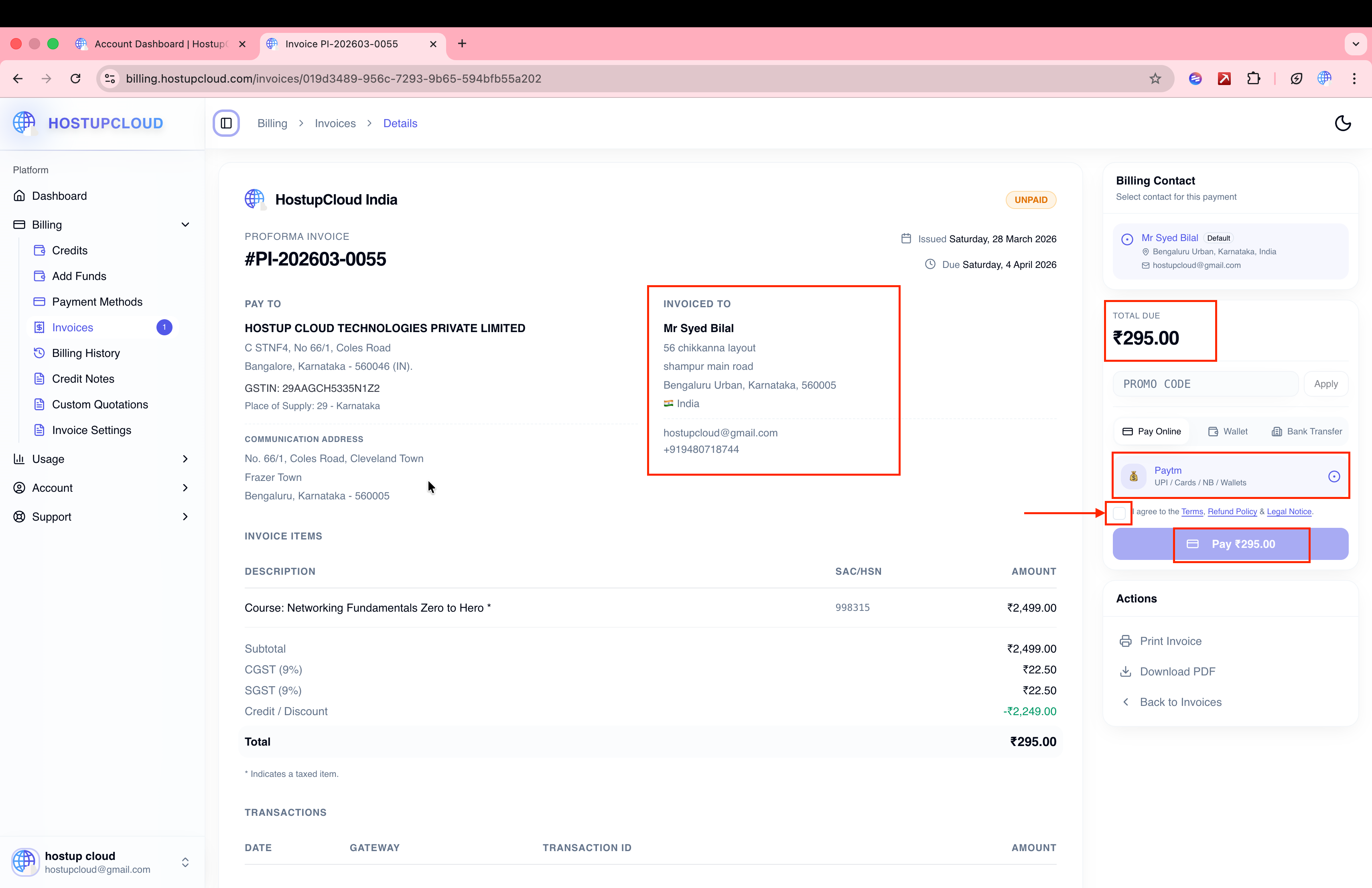
Invoice Details
Your invoice includes:
- Course name and description
- Base price of the course
- GST breakdown (if applicable — 18% for Indian customers)
- Same state as HUC: CGST 9% + SGST 9%
- Different state: IGST 18%
- Credit / Discount (if a coupon was applied)
- Total amount due
Select Billing Contact
On the invoice page:
- Check the Billing Contact section in the sidebar.
- Your default contact is pre-selected. You can switch to a different contact if needed.
- If no contact exists, you'll see a prompt to add a contact — this links back to auth.hostupcloud.com/contacts.
A billing contact is required to proceed with payment. Make sure you've added at least one contact with a valid address before purchasing a course.
Apply Promo Code (Optional)
If you have a promo code:
- Enter it in the Promo Code field on the invoice sidebar.
- Click Apply — the discount will be shown on the invoice.
- Promo codes can be a fixed amount or a percentage discount.
Choose Payment Method
Select your preferred payment method:
For Indian users (INR):
| Method | Provider | Speed |
|---|---|---|
| UPI | PhonePe, PayU, Cashfree | Instant |
| Credit / Debit Card | PhonePe, PayU, Cashfree, Stripe | Instant |
| Net Banking | PayU, Cashfree | Instant |
| Wallet (Paytm, etc.) | Paytm, PhonePe | Instant |
| HUC Wallet | Pre-funded balance | Instant |
| Bank Transfer | Manual NEFT/RTGS/IMPS | 1–24 hours |
For international users (USD / multi-currency):
| Method | Provider | Speed |
|---|---|---|
| Credit / Debit Card | Stripe, PayPal | Instant |
| PayPal | PayPal | Instant |
| HUC Wallet | Pre-funded balance | Instant |
| Bank Transfer | Manual wire transfer | 1–3 business days |
Complete Payment
- Click Pay Now with your selected method.
- You'll be redirected to the payment gateway (PhonePe, Stripe, PayPal, etc.).
- Complete the payment on the gateway's page.
- After payment, you're redirected back to the billing portal.
Payment Confirmation
After successful payment:
- The billing portal shows a Payment Successful confirmation.
- A 5-second countdown starts to redirect you back to the Learning Portal.
- You can also click Return to Course immediately.
- A payment receipt email is sent to your registered email.
- If GST was applied, a tax invoice is generated with a unique invoice number.
If you don't want to wait for the redirect, click Return to Course to go back to the Learning Portal immediately. Your enrollment is confirmed as soon as payment is verified.
Step 4: Access Your Course
Once enrolled (free or paid), you can access your course:
- Go to My Courses from the navigation menu.
- You'll see all your enrolled courses with progress indicators.
- Click on a course to open it.
Course Content
Each course contains:
- Sections — organized groups of lessons
- Lessons — individual learning units with video, text, or quiz content
- Quizzes — test your understanding after lessons
Tracking Progress
- Click Mark Complete after finishing each lesson.
- Your progress bar updates automatically.
- The My Courses page shows tabs: All Courses, In Progress, and Completed.
Interactive Features
While taking a course, you can:
| Feature | Description |
|---|---|
| Notes | Take personal notes on any lesson |
| Bookmarks | Bookmark lessons to revisit later |
| Q&A | Ask questions and discuss with other students |
| Reviews | Rate and review the course after completing it |
| Assignments | Submit assignments if the course includes them |
Step 5: Earn Your Certificate
When you complete all lessons in a course:
- Your enrollment status changes to Completed.
- A certificate is automatically issued with:
- Your name
- Course title
- Completion date
- A unique credential ID (format:
HUC-{COURSE}-{YEAR}-{SEQ})
- View and download certificates from Certificates in the navigation menu.
Paying from HUC Wallet
If you prefer, you can pre-fund your HUC Wallet and pay for courses from your balance:
- Go to billing.hostupcloud.com/add-funds.
- Select an amount and payment method.
- Complete the payment — funds are added to your wallet.
- When purchasing a course, select Pay from Wallet on the invoice page.
- The amount is deducted instantly and the course is unlocked.
Wallet payments are instant — no gateway redirect needed. If your wallet has insufficient balance, you can add funds first or choose a different payment method.
Prerequisites
Some courses require you to complete other courses first. If a course has prerequisites:
- You'll see the required courses listed on the course page.
- You must complete all prerequisite courses before you can enroll.
- Completed prerequisites are marked with a checkmark.
Unenrolling from a Course
If you want to unenroll:
- Go to My Courses.
- Open the course you want to leave.
- Click Unenroll (or use the dropdown menu).
- Your enrollment is set to "dropped" — your progress is preserved.
You can re-enroll in the same course later:
- Free courses: Re-enroll instantly.
- Paid courses: Re-enrollment requires a new payment and admin approval.
Troubleshooting
I paid but my course isn't showing
- Payment confirmation can take up to 2 minutes. Refresh the page.
- Check your email for a payment receipt to confirm the transaction went through.
- If the issue persists, contact support at hostupcloud.help.
I can't enroll — it says "Payment Required"
- The course is paid. Click Enroll Now to be redirected to the billing portal for payment.
I can't enroll — "Prerequisites not met"
- You need to complete the required courses first. Check the course page for the list of prerequisites.
I don't see any payment methods
- Make sure you have a billing contact added in your HUC account.
- Payment gateways are filtered by your billing contact's country. Indian contacts see Indian gateways (PhonePe, PayU, etc.), international contacts see Stripe/PayPal.
Invoice shows no GST but I'm in India
- GST is calculated based on your billing contact's country and state. Make sure your contact has a valid Indian address with state selected.
Summary: Complete Enrollment Flow
1. Sign up at auth.hostupcloud.com
   ↓
2. Complete KYC verification
   ↓
3. Add billing contact with address
   ↓
4. Browse courses at learn.hostupcloud.com
   ↓
5a. Free course → Enroll instantly
5b. Paid course → Apply coupon (optional) → Pay on LMS → Redirect to billing
   ↓
6. Review invoice → Select payment method → Pay
   ↓
7. Auto-redirected back to Learning Portal
   ↓
8. Access course content → Complete lessons
   ↓
9. Earn certificate on completion